
CarPeak - settings
App settings are accessible by clicking on the user profile in the top right corner of the application. This is where you manage both basic data and the application's operation.
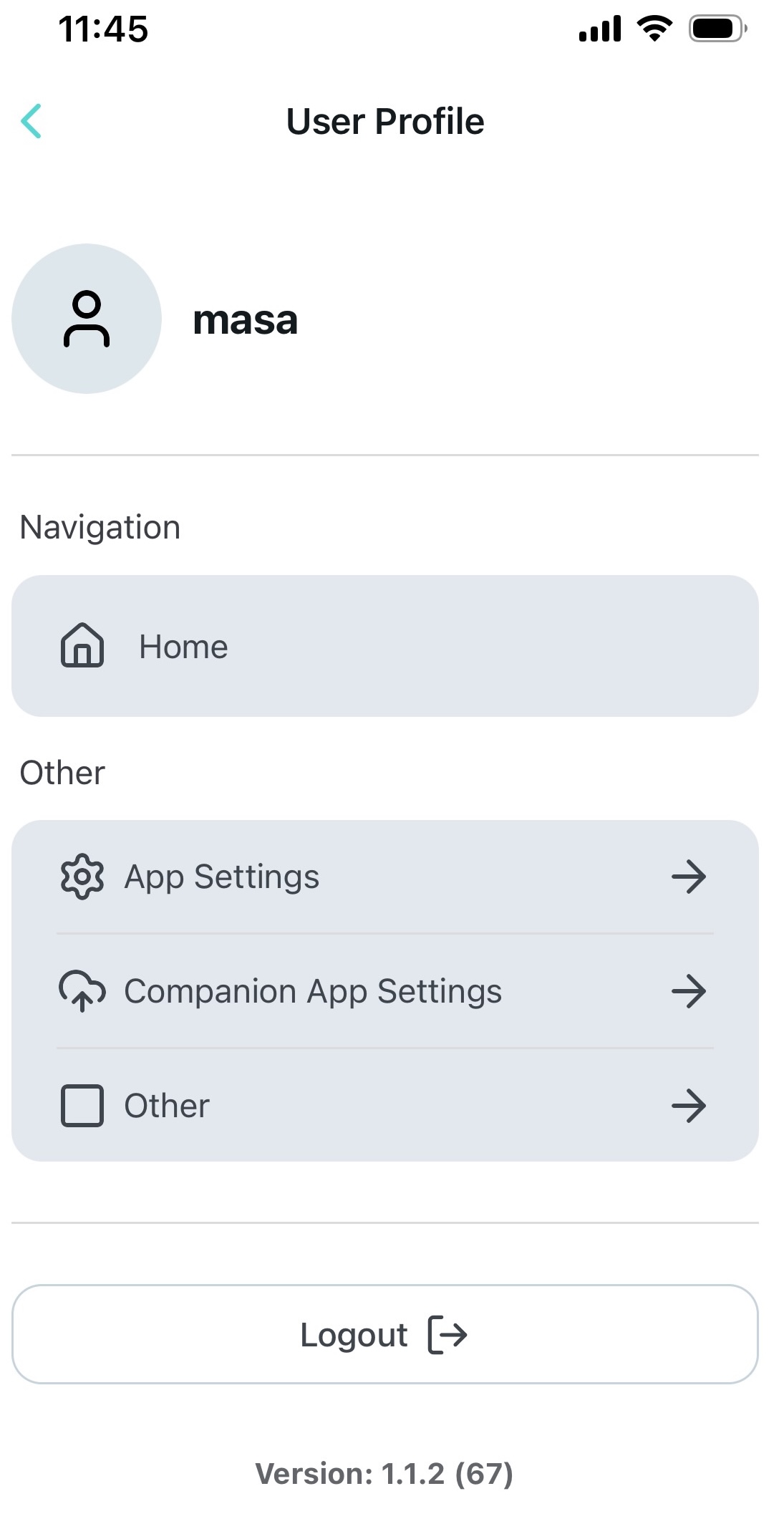
- App settings (application settings)
- CarPeak app settings (CarPeak functionality settings)
- Other (additional settings)
At the bottom of the screen, the application version (important when reporting issues) and a button to log out of the application are displayed.
App settings
Within App settings, general application operation settings can be edited.
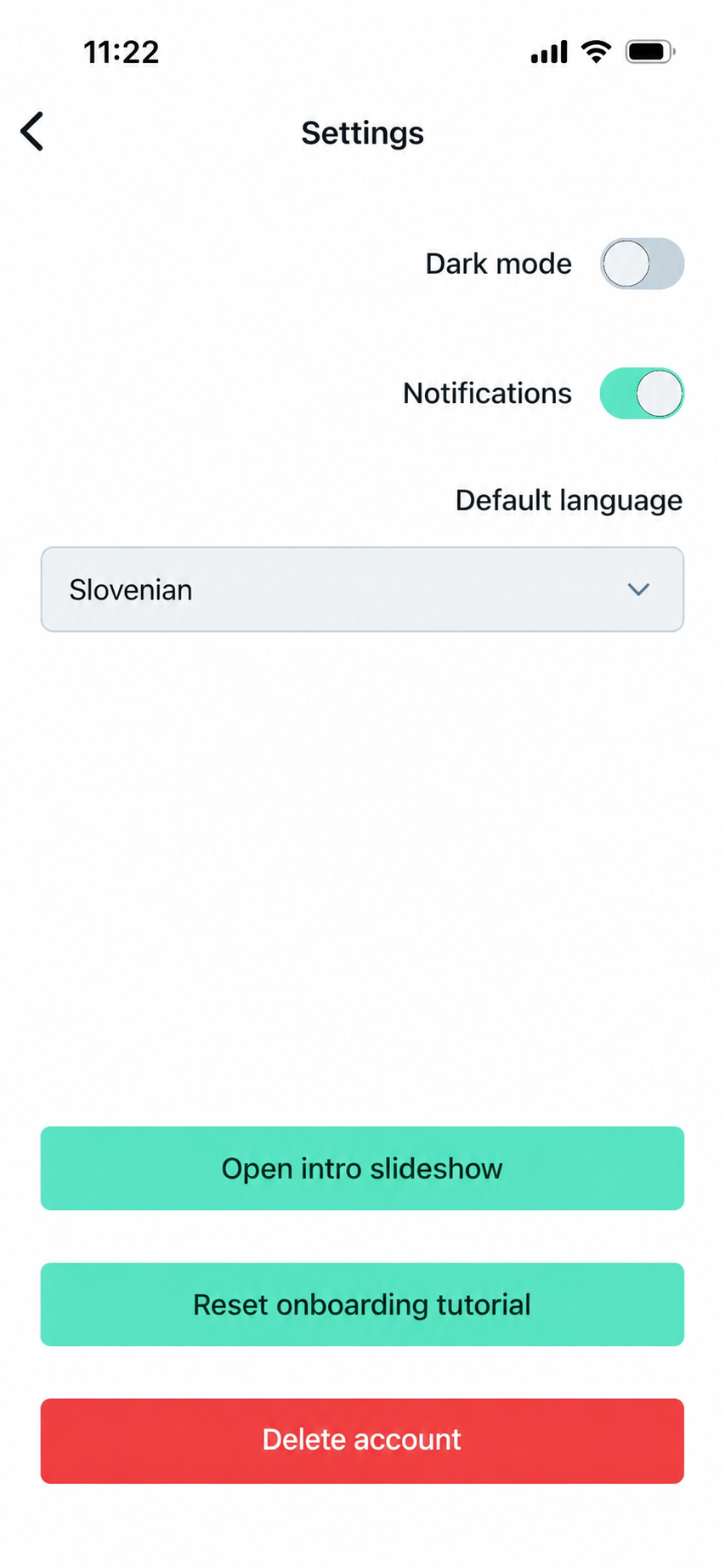
- Choice between light (light) and dark (dark) application appearance
- Option to enable or disable notifications
- Language selection for the application: The default language is English, but you can also choose Slovenian or Croatian
Recommendation: Keep notifications enabled, as the application informs you about the status of image processing and alerts you to important changes.
Delete account
Within settings, deletion of the CarPeak account is enabled.
Clicking the button opens an option to send an email to support, who will arrange account deletion.
Image Processing Settings
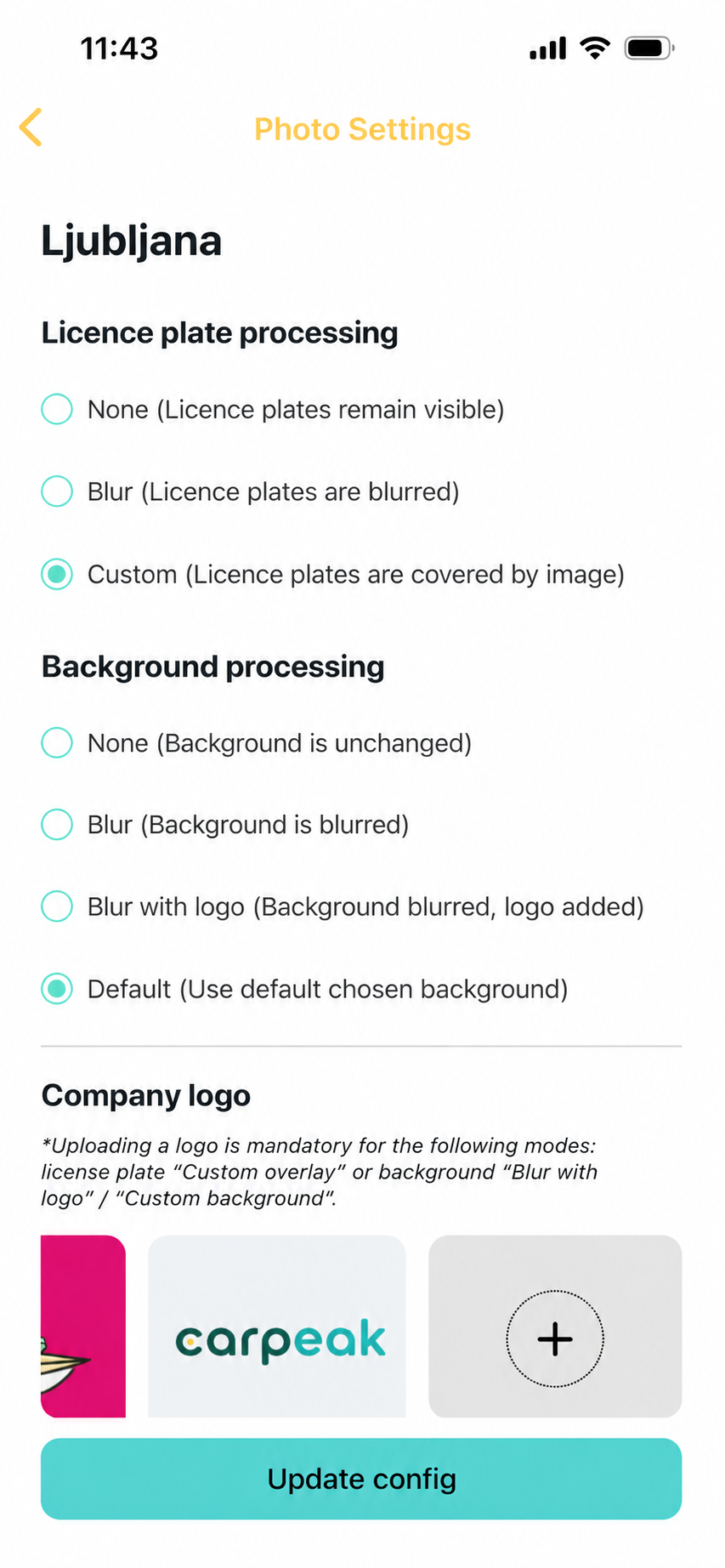
Image processing settings, which you can find under "Photo Settings" within "CarPeak App Settings", determine how vehicle photos will be processed. These settings are available for individual locations in AutoBrief and can be configured:
- by individual location (in the location selection view) or
- as a default setting, if you only have one location
With this screen, you define:
- how license plates are processed
- how the background is processed
- and add logos
License Plate Processing
This section defines how visible license plates will be processed in images. The following methods are available:
- None (no change) - license plates remain visible (no changes)
- Blur - plates are automatically blurred
- Custom - plates are covered with graphics (e.g., branding or dealer style)
Background Processing
This section defines how the image background is processed:
- None - the background remains unchanged
- Blur - the background is blurred, the vehicle remains clear
- Blur with logo - the background is blurred and a logo is added
- Default - the background selected from the background options is used
 Company logo
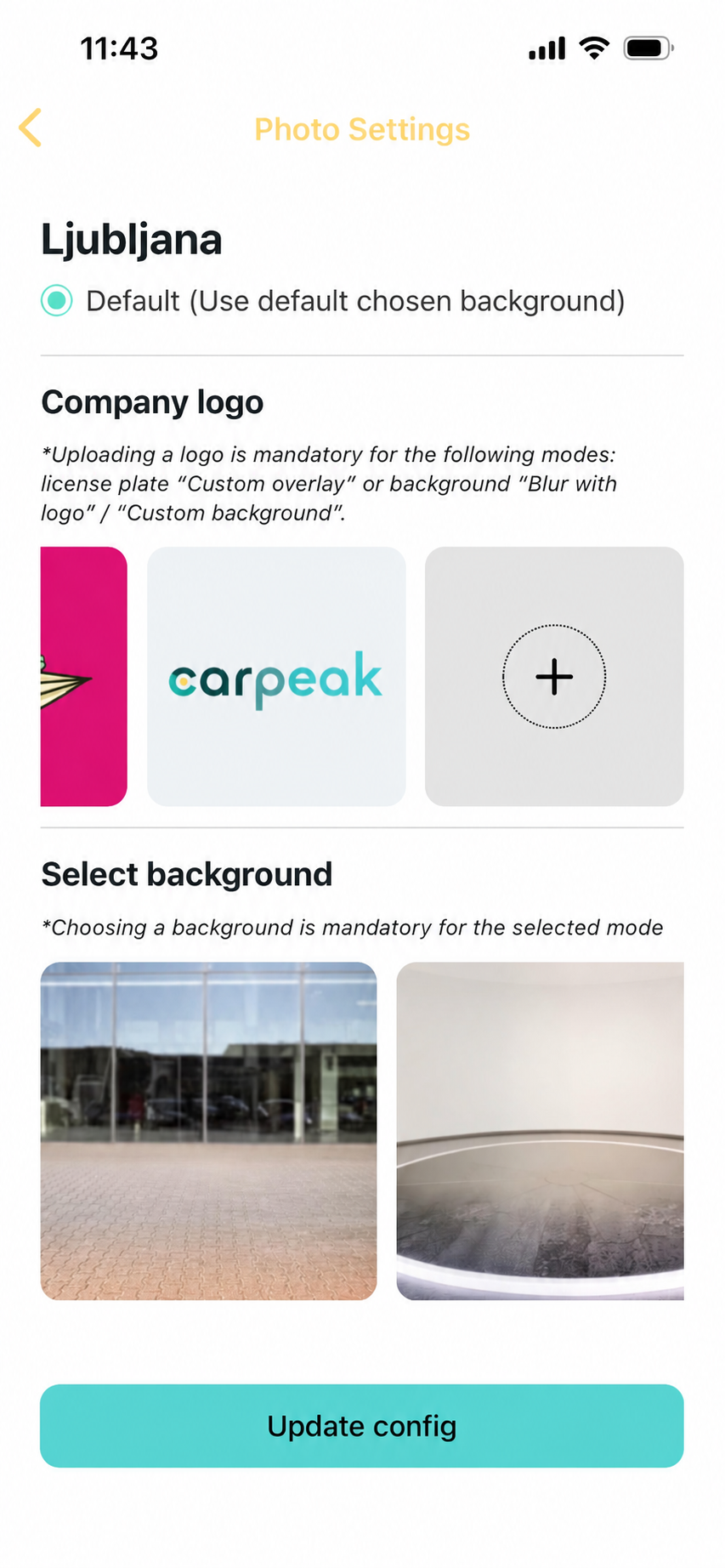
In the settings, you can upload your company logo, which is mandatory for modes where branding is used.
If the logo is not uploaded, certain options (e.g., with logo) will not work correctly.
Background selection
The last setting option is the background selection, which is used when processing images.
You can choose from numerous backgrounds.
Tip: Properly configured image processing settings allow all vehicles to have a uniform, professional, and recognizable appearance.
Once you are satisfied with the settings, you need to save them by clicking on "Update config".
All subsequent images will be processed according to the selected settings. Images that have already been processed will not be changed.
Queue Settings
Within "Commercial photos settings" settings, you can track image uploads to AutoBrief..
- Uploading: displays all images that are still in the process of uploading
- Failed: Displays images that failed to upload. With the "Retry all" button, you can send them for upload again.
- Waiting: A list of images still waiting to be uploaded to AutoBrief.
Other settings
These settings are for technical maintenance of the application.
Clear app storage (clearing application data)
- deletes locally stored data
- removes temporary information
Clear images (deleting local images)
- deletes all photos stored on the device
- does not affect images already uploaded to AutoBrief
Clear network cache (clearing cache)
- clear temporary connection data
When to use these functions?
- If the application is running slowly
- If images are not loading correctly
- If display errors occur
This is often the fastest way to resolve minor technical issues without support.
Notifications
Here you can find all notifications sent through the application. This includes everything important regarding application updates, the addition of new features, or the completion of a process. If the list is empty when you click on Notifications, you have no new messages. If you have not yet read any of the messages, they will be available for reading when you click on them.