
Company profile
Company profile settings are one of the most important settings in AutoBrief, so we recommend that you edit them immediately upon starting to use the platform.
The data you enter in the company profile is automatically used throughout the system, for example, when:
- printed on invoices,
- printed on documents,
- purchasing vehicles through auctions.
Accessing settings
You can access the settings in a few steps:
- In the upper part of the platform click on your username.
- A settings menu will open.
- Click on Company Profile.
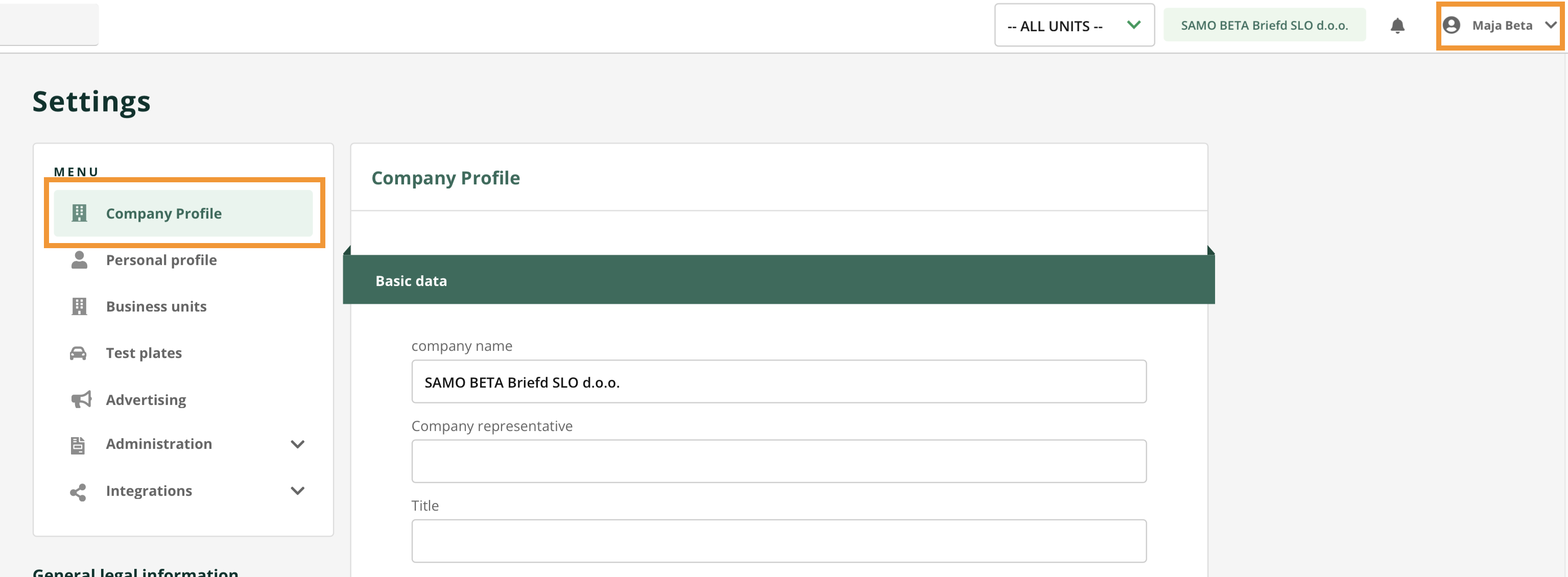
In this section you can edit all main company data used in various platform modules.
Company Information
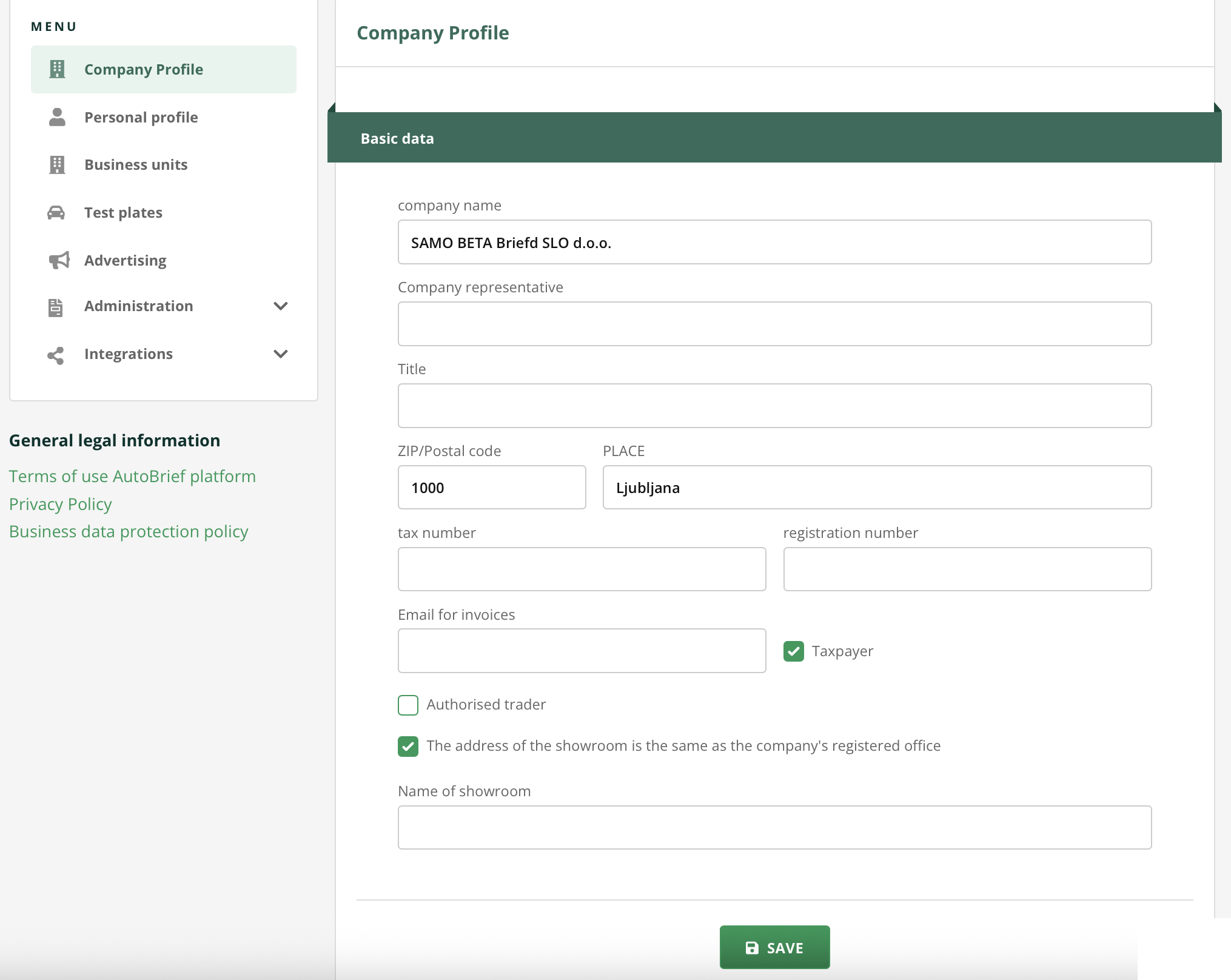
In the Company Profile section you enter basic business information:
- Company Name: Enter the official company name as registered in the business registry. Important: The name of the sales showroom can be different and is set separately.
- Company Representative: enter the first and last name of the company's legal representative.
- Company Address
- Tax Number
- Registration Number
- Tax Payer
- Email for Invoices: This is the email address to which you will receive AutoBrief platform invoices. Important: This is not the email that appears on invoices you issue to your customers.
Showroom
The official company name is not necessarily the name of the showroom under which you wish to operate. If the showroom address is different from the official company address, you can set this within the company profile settings.
The showroom name can be displayed on:
- potential vehicle ads,
- Virtual Showroom ,
- and created documents.
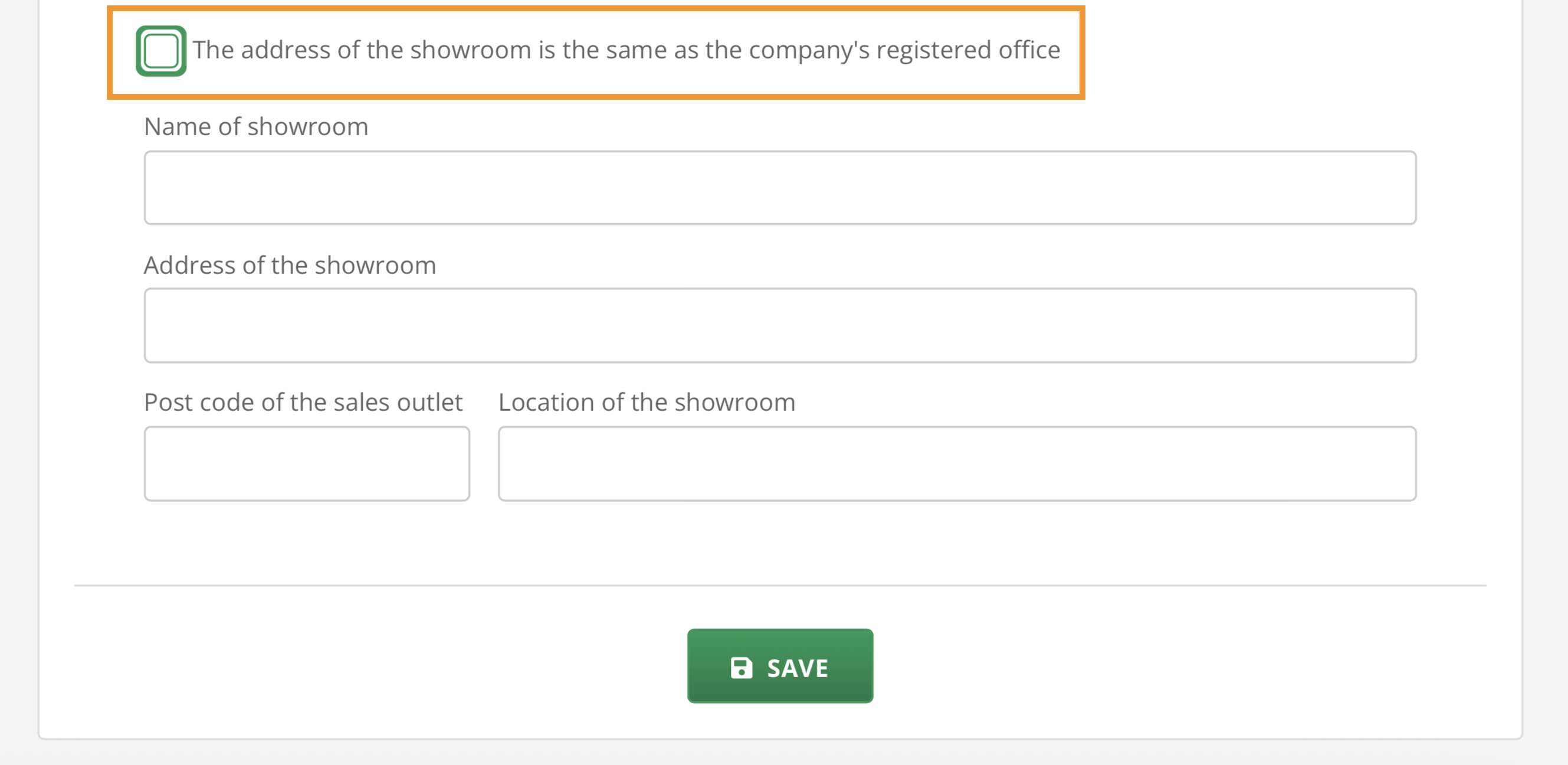
Just like the name, you can also set the address of the showroom. In the company profile settings, uncheck the option that the showroom address is the same as the company's registered office. Fields for entering the address will then open.
In these cases, the system will automatically use the showroom address instead of the company address where appropriate (location in Virtual Showroom, vehicle delivery documents, vehicle advertising, etc.).
Authorized Dealer
If you are an authorized dealer for a specific vehicle brand you can indicate this within the company profile settings. This information allows us to notify you of important changes only for authorized dealers.
Save changes
All changes within the company settings must be saved by clicking the SAVE.
After you edit your company profile, we recommend that you also edit your user account and create business units, if you operate at multiple locations.