
Vehicle auctions - listing a vehicle for sale
AutoBrief enables dealers not only to advertise vehicles on Slovenian and Croatian portals, but also to offer them for sale to other dealers through auctions. This is especially beneficial when a vehicle remains in stock for too long.
To sell a vehicle through auctions, you need active access. If you do not yet have access to auctions, follow the instructions in the article for auction activation. Until access is activated, you will not see the option to post on auctions.
Steps to post a vehicle for auction
Vehicle posting
On each vehicle's card, find the section Digital Advertising. If you have activated auctions, the option Trading Hub
The vehicle you are selling through auctions must be removed from regular sale.
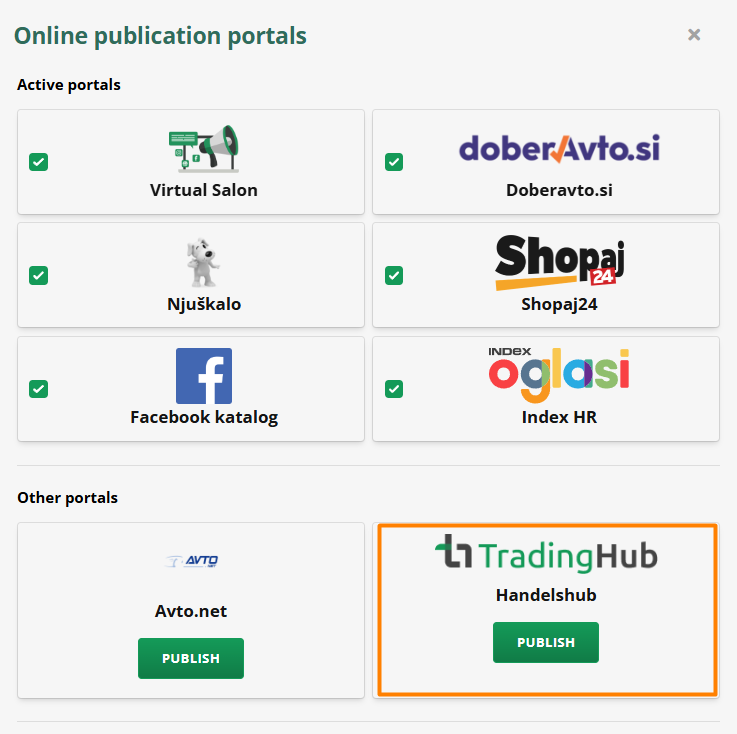
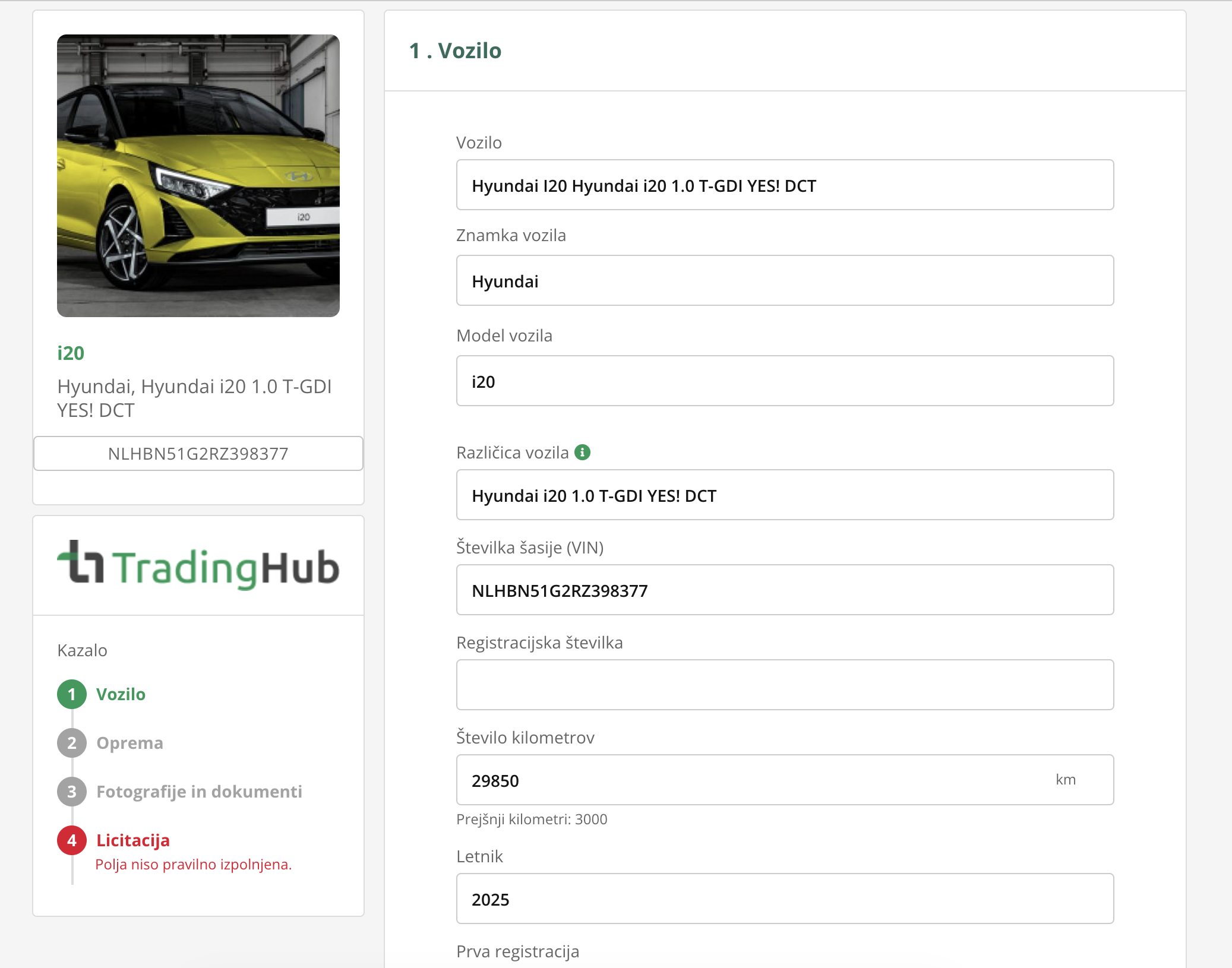
By clicking the button POST VEHICLE a form for listing vehicle properties opens. The vehicle posting process follows the same principle as the process of advertising vehicles on other portals.
The form guides you through four steps:
- Vehicle property listing
- Equipment listing
- Adding photos and documents
- Auction settings
Adding photos and documents
Photos are a crucial part of the presentation. Make sure they are:
- high-quality,
- detailed (shots of damage, interior, body),
- clear (different angles of the vehicle).
For a more professional impression, you can use the app CarPeak, which helps you with photography and automatic image processing.
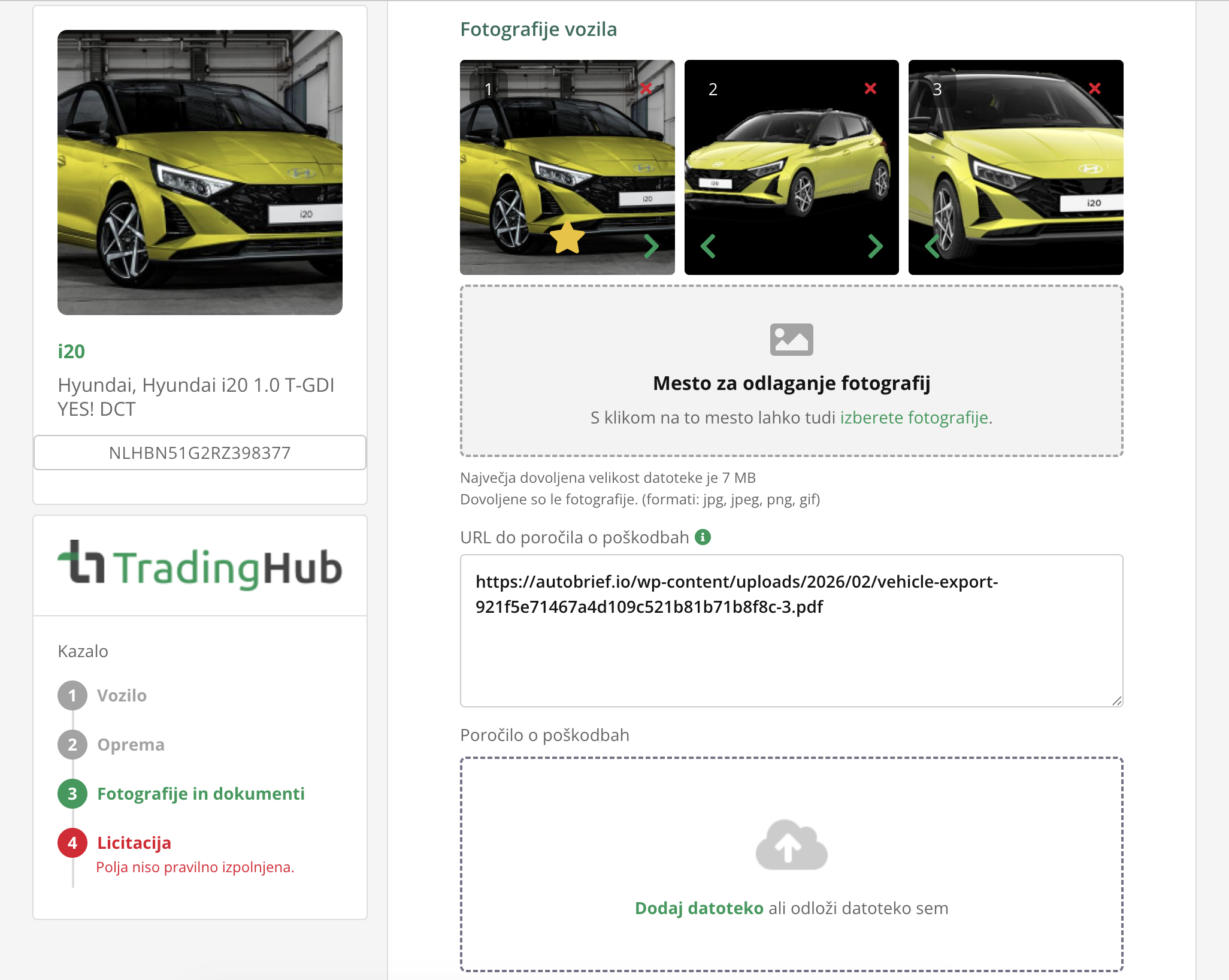
In the field Damage Reports, add a document in PDF or URL format.
Why is the report important?
- The report is a key element of trust in auctions
- Buyers make purchasing decisions based on reports
- If there is no report, the system will warn buyers that the vehicle has no information about its condition – this significantly reduces the chances of a successful sale
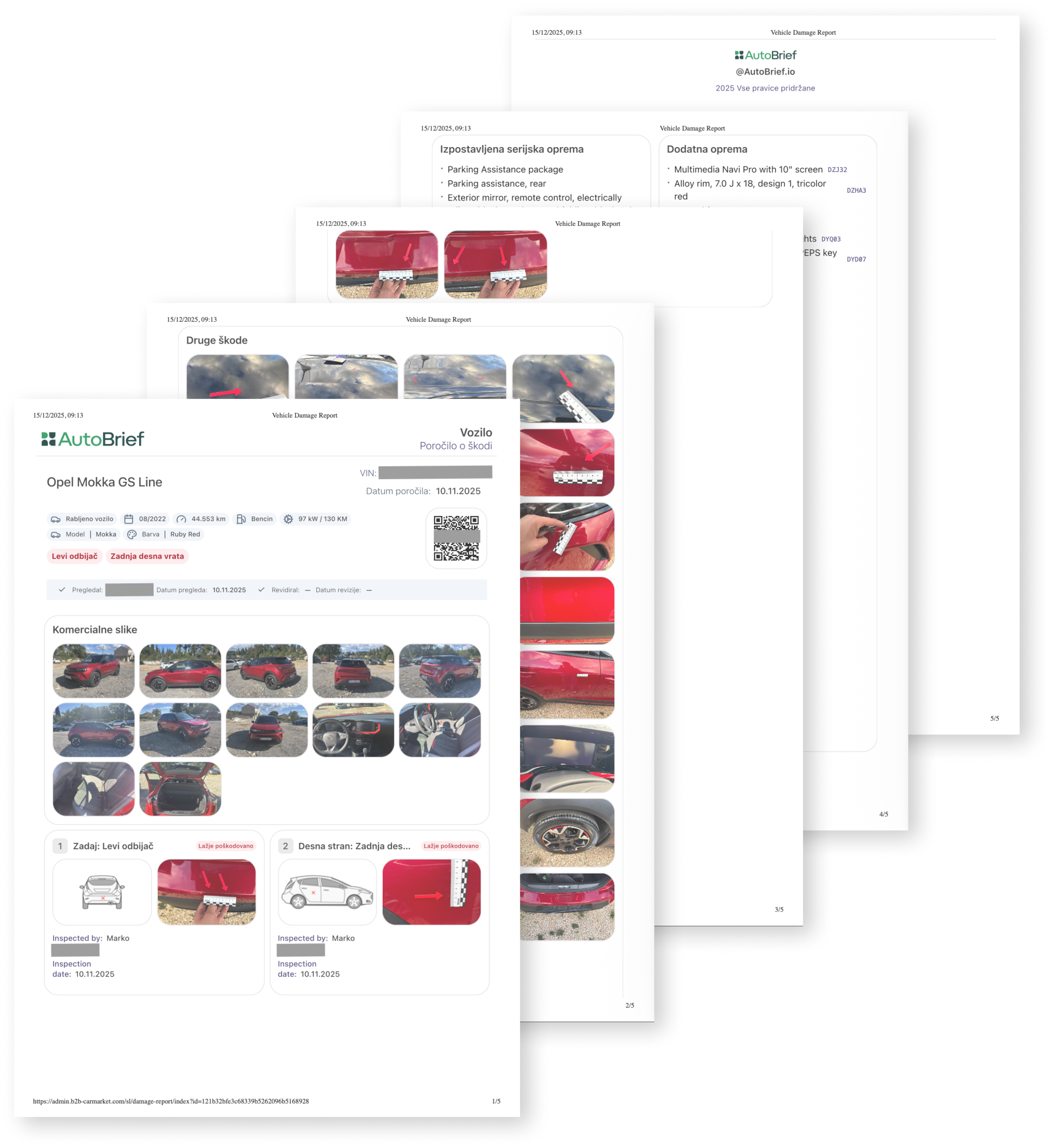
The report should include:
- Clearly marked damage
- Photos of damage
- Interior and exterior data
- VIN, location, technical specifications
- Inspector's comments
If you use Digital Inspection, the report will be automatically structured and clear.
Auction settings
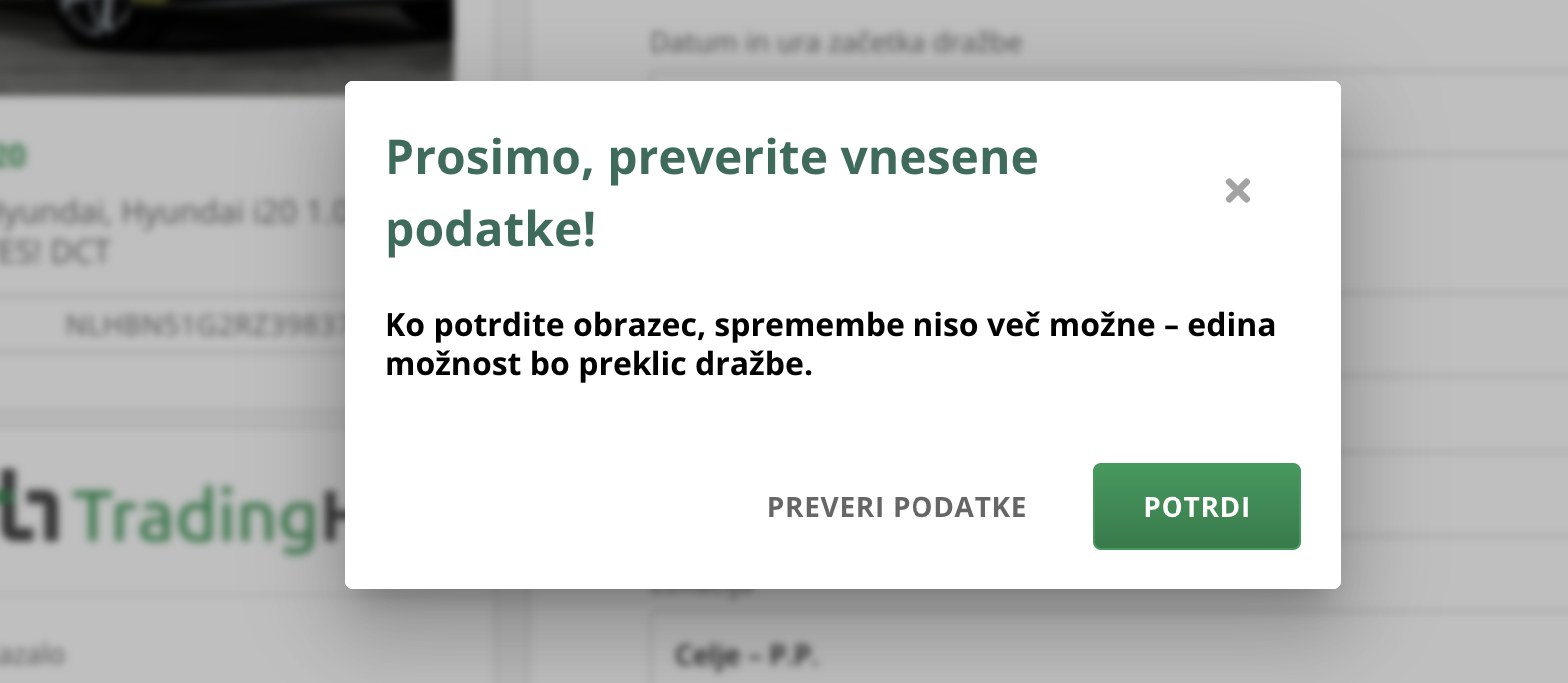
This step is crucial, as it determines the conditions under which the vehicle will be sold. Once the auction is published, settings can no longer be changed.
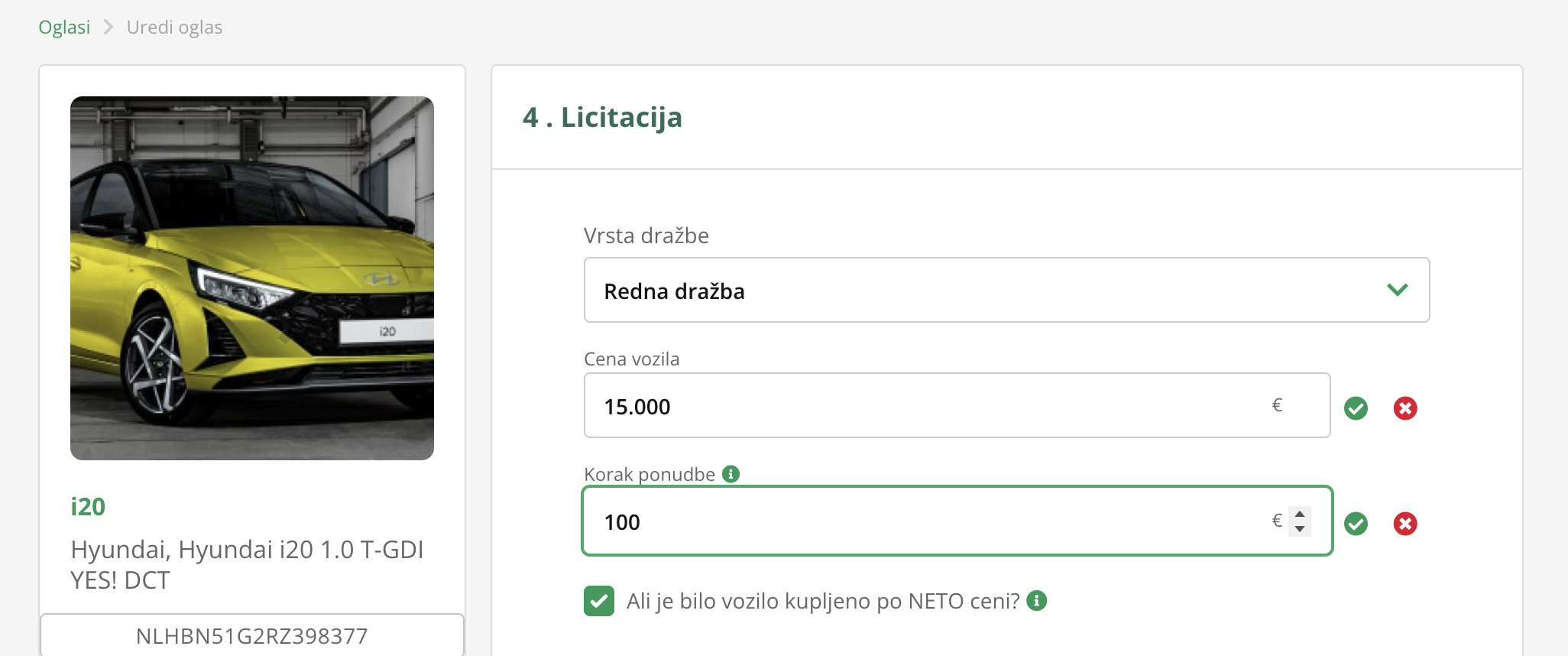
Auction type
- Standard auction
- You set the starting price of the vehicle.
- You set the bid increment (by how much the price can increase with each new bid).
- You indicate whether you are selling the vehicle at a net price (without VAT) or a gross price.
- Fixed-price auction
- You enter the price at which you want to sell the vehicle.
- The first dealer to confirm the purchase buys it – but as the seller, you must still confirm the final purchase.
- Blind auction
- You do not set a price.
- Dealers submit bids without seeing others' prices.
- After completion, you can decide whether to accept the highest bid.
Tip: The set price of the vehicle should not exceed the usual selling price in the B2C market. If the price is too high, other dealers will not find the purchase interesting, as it will not allow them a sufficient margin.
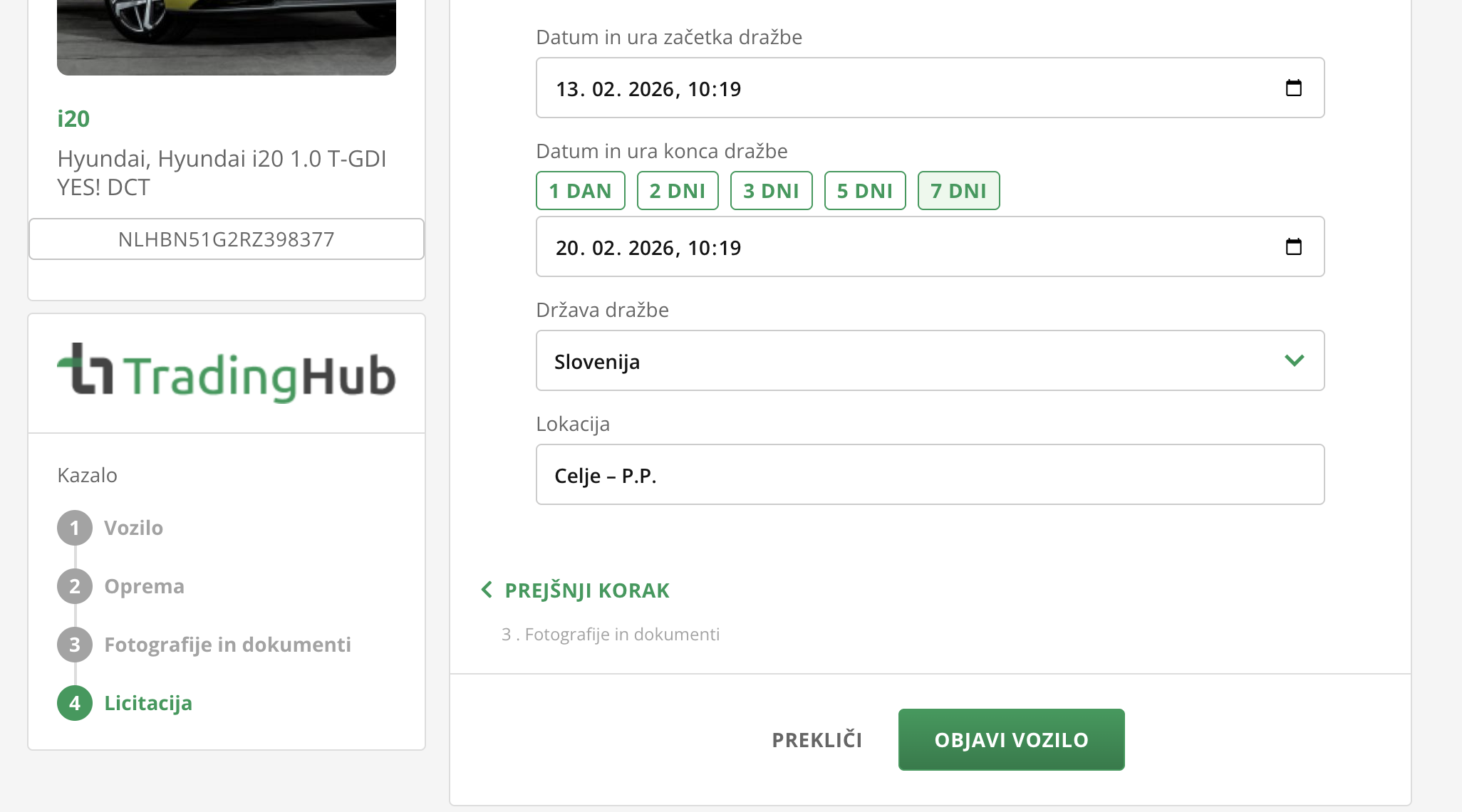
Auction timeline
- You set the start date and end date.
- Auctions last for your chosen duration, but before publishing, you must know how long you want the vehicle to be available.
- You cannot edit an auction while it is in progress. However, you can extend it.
Vehicle location
- Important for calculating transport costs and informing buyers.
When you are satisfied, publish the vehicle for auction by clicking on PUBLISH VEHICLE.
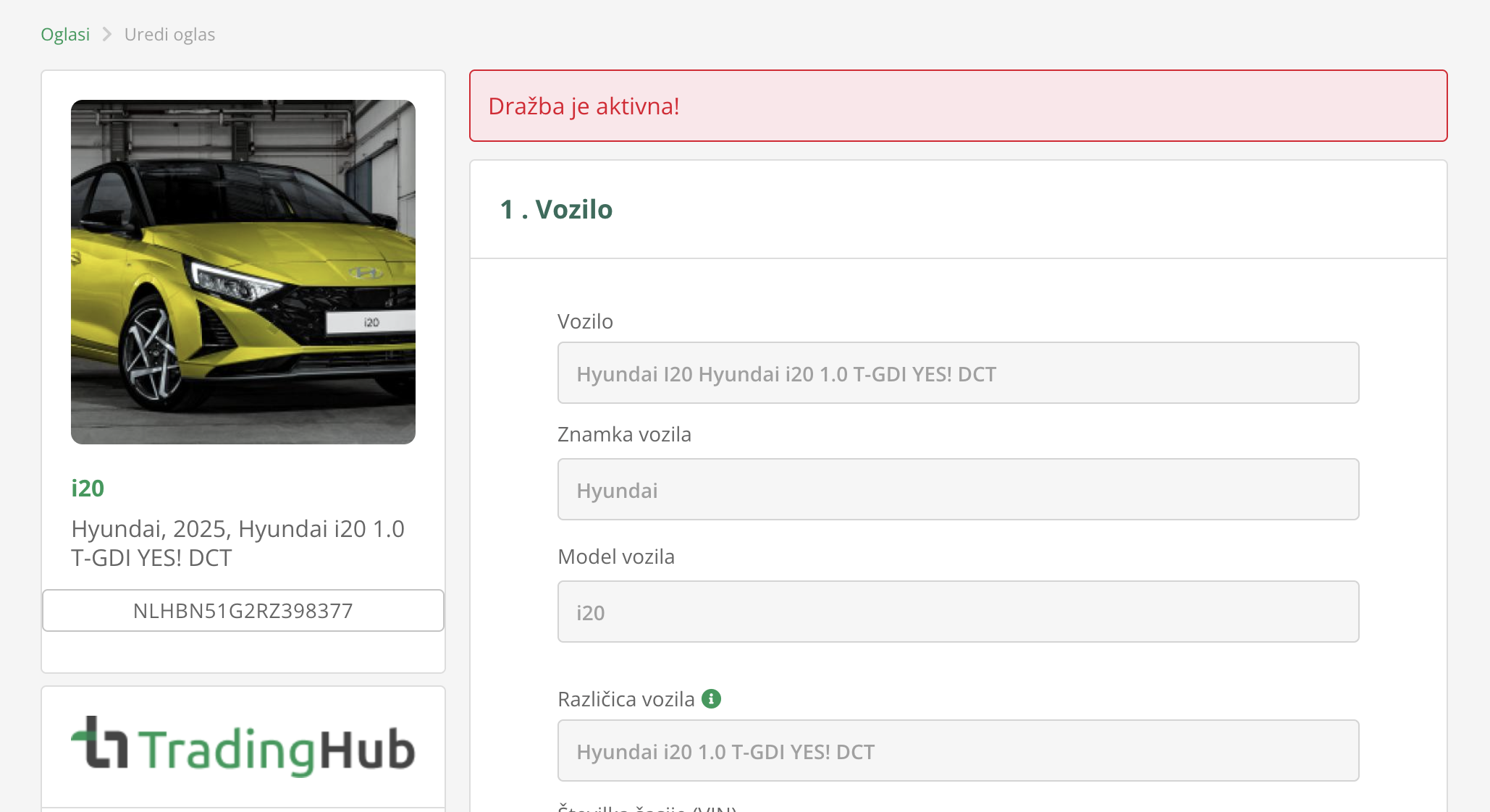
If you try to republish the vehicle or change the auction type while the auction is active, the system will warn you that the listing is already active. Listing in multiple auctions simultaneously is not allowed.
My Auctions
All vehicles you sell through auctions are gathered under the tab My Auctions.
Here you have:
- an overview of the number of views,
- an overview of the number of offers,
- data on the end of the auction,
- the sales confirmation status.
- the option to extend auctions
To view the complete history of vehicles you have ever sold through auctions, select under filters - Auction Status: All statuses.
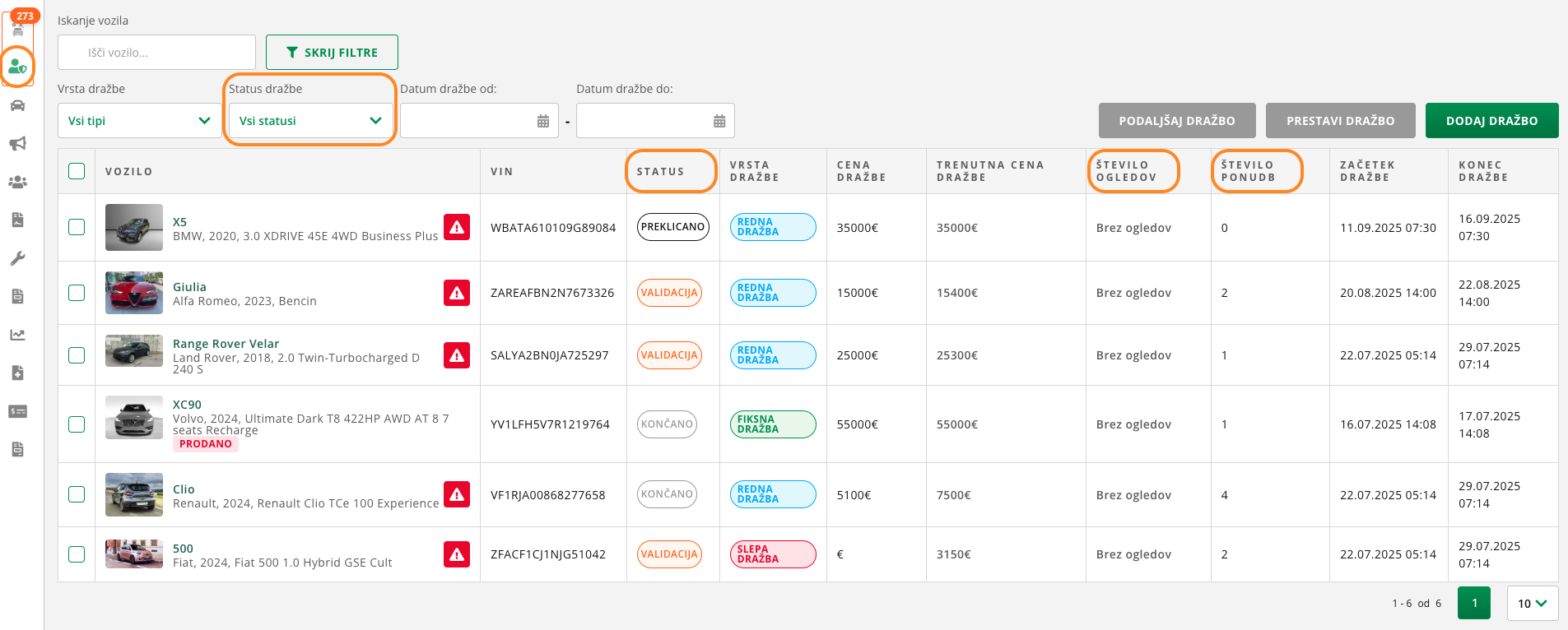
If you want to check details about a specific vehicle and the progress of its sale at auction, click on the vehicle. The tab Vehicle Auctions, opens, which you can access directly on the vehicle card.
In this tab, you see:
- the history of all submitted offers,
- current auction statuses,
- the starting price,
- the current price at which the vehicle is being sold.
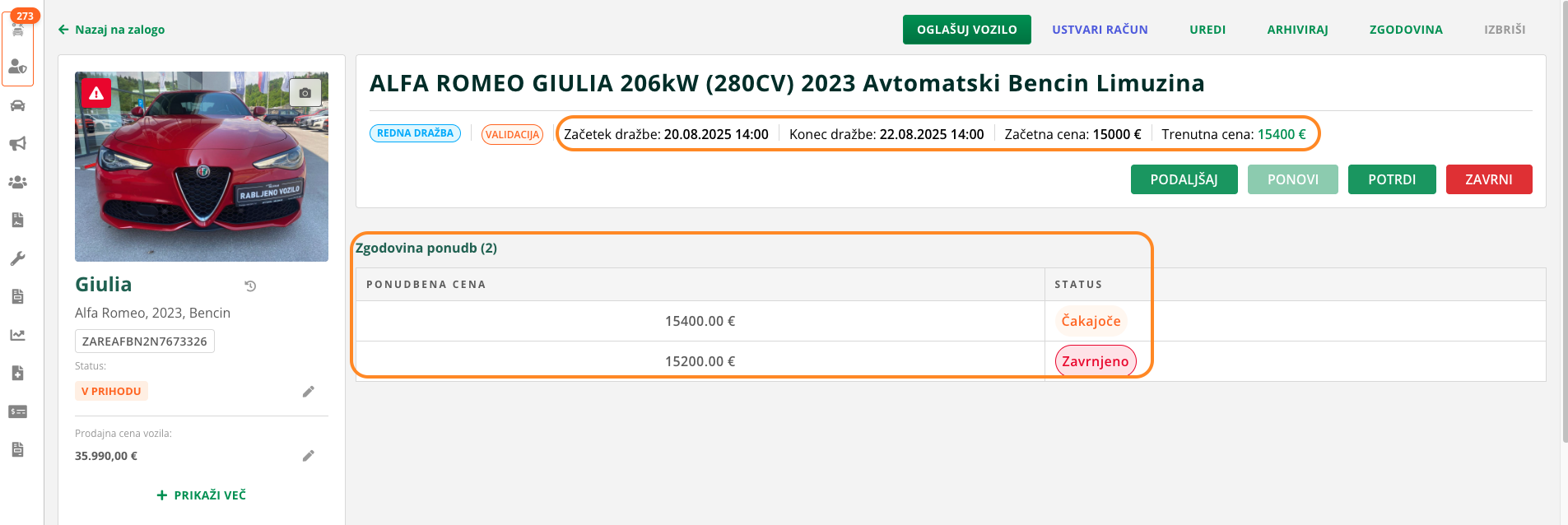
Auction Management
On the vehicle card, you can:
- extend, if you want to allow an additional period for submitting bids,
- accept, if you accept the highest bid,
- reject, if the offer does not meet your expectations.
If the auction expires and you have rejected the highest bid, you can re-publish the auction and offer the vehicle for sale again.