
User accounts
In AutoBrief every user has their own user account, through which they access the platform and perform their tasks.
Settings for editing your personal profile, user accounts and company are accessible in the upper right corner of the platform by clicking on your username.
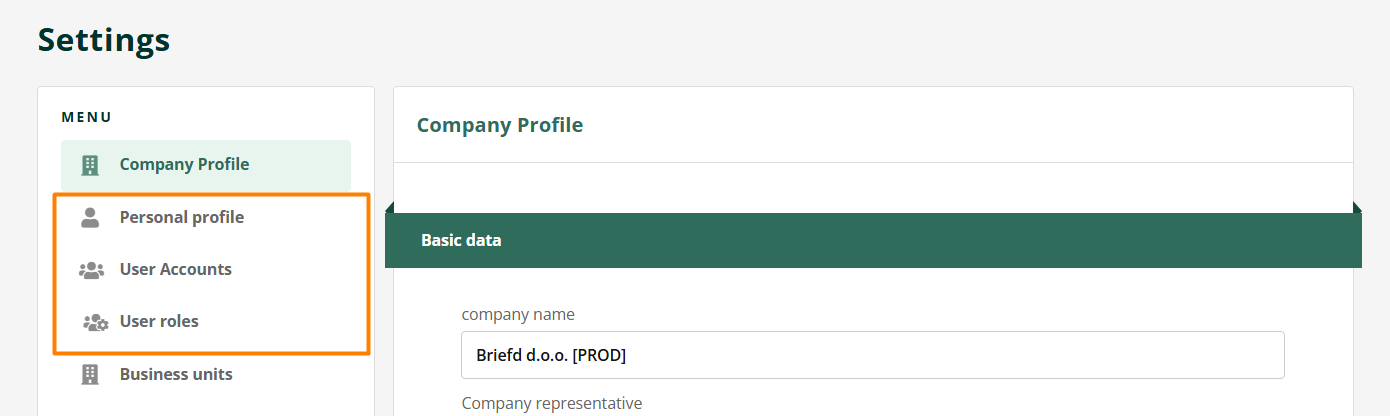
Within the settings, you can edit:
- company profile,
- personal profile,
- user accounts,
- role management,
- business units,
- test plates,
- integrations,
- packages and subscription,
- and administration.
User's Personal Profile
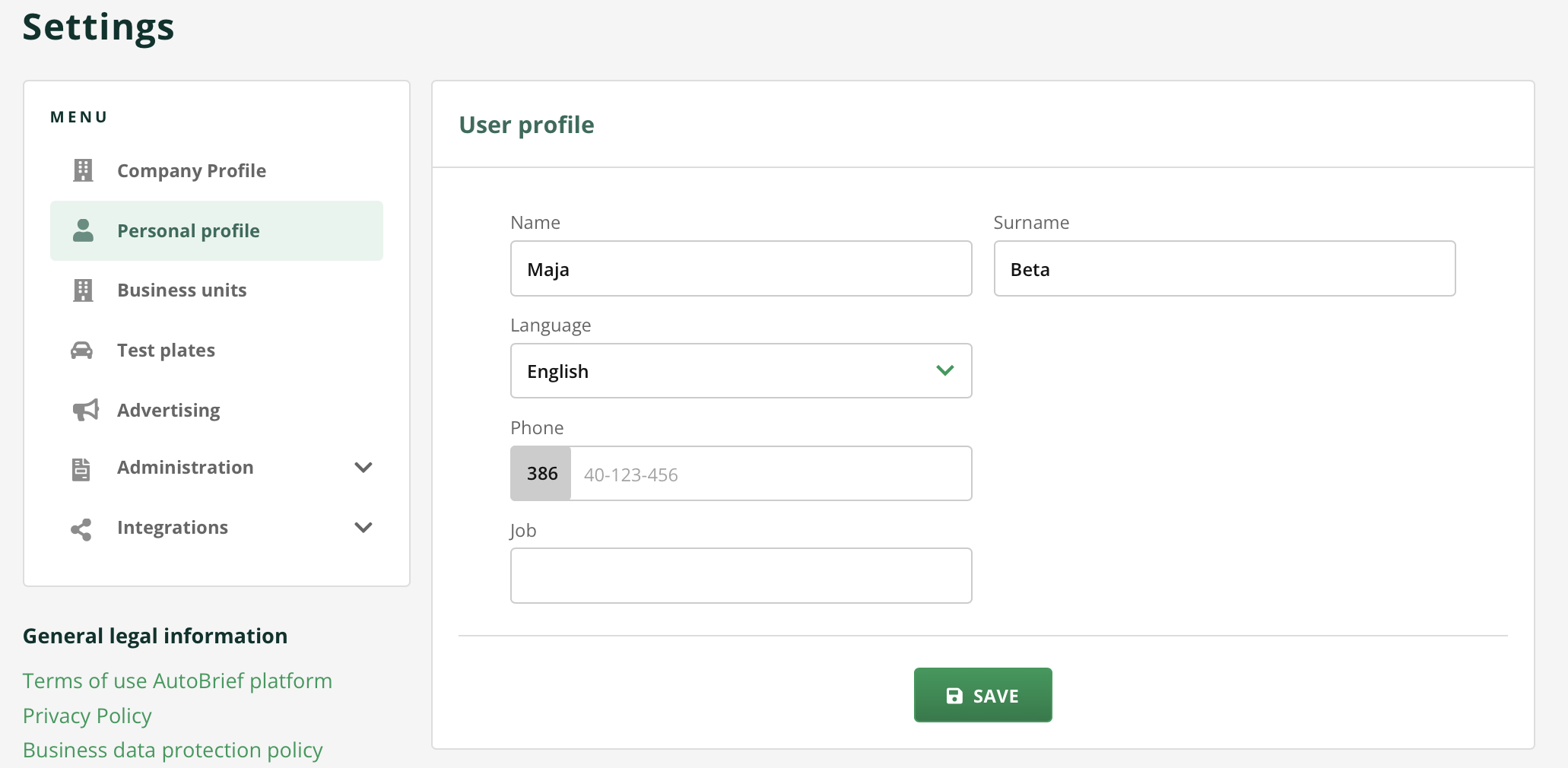
To edit your personal profile in the settings select Personal Profile.
There you can change:
- first and last name,
- language,
- phone number,
- job title.
Language Change
AutoBrief supports multiple languages. Currently available are:
- Slovenian
- Croatian
- English
- German
- Polish
The language change will be applied in the application as soon as you save the changes.
Adding new users
The STARTER and PRO packages allow the use of the same company profile with multiple users. The number of included users depends on the package. The current number is shown on the online price list .
Adding users allows each team member to use their own account and access rights. You need Admin rights to add users.
You can add a colleague in the following steps:
- Go to Settings → User Accounts.
- Click Add user.
- Enter the user's basic information.
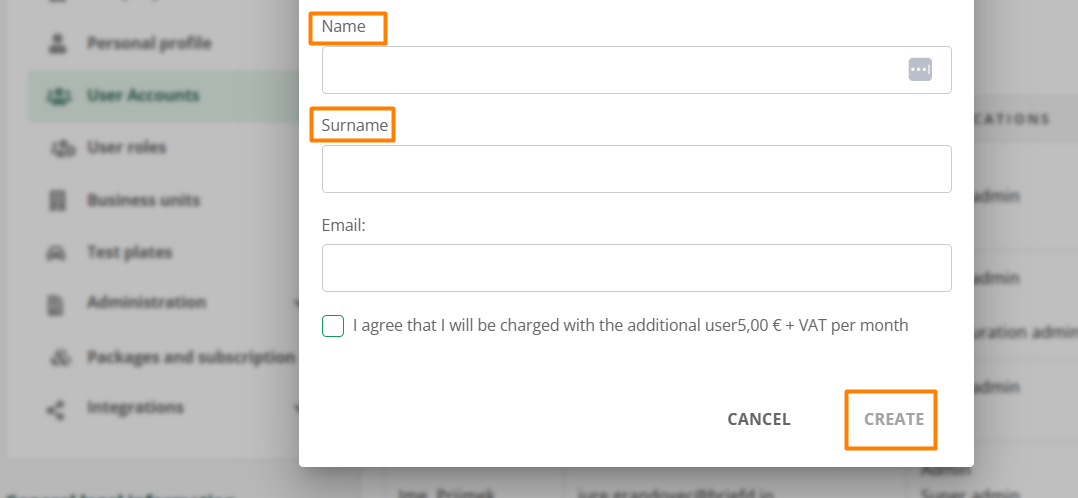
Before confirmation the system will notify you if the selected package allows adding users and if an additional user slot needs to be purchased.
Once you confirm the addition the new user will receive an invitation to their email address.
User roles
You can assign different roles to users, which determine their permissions in the system.
The basic roles are ADMIN and USER.
Administrator permissions
To manage users your account must have ADMIN permissions. Only users with the ADMIN role can:
- add new users,
- change access permissions,
- manage user roles.
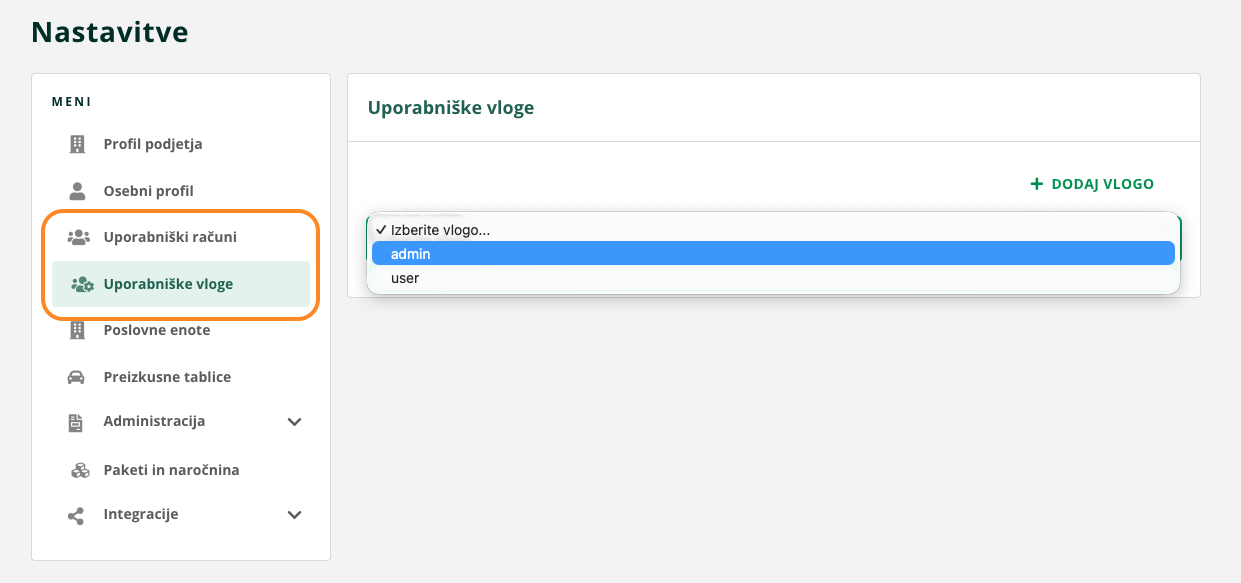
Important: If you don't have ADMIN permissions, you won't see the User Roles or User Accounts tabs.
Creating custom roles
Users of the PRO package can also create their own user roles. This allows for very precise permission settings for individual employees.
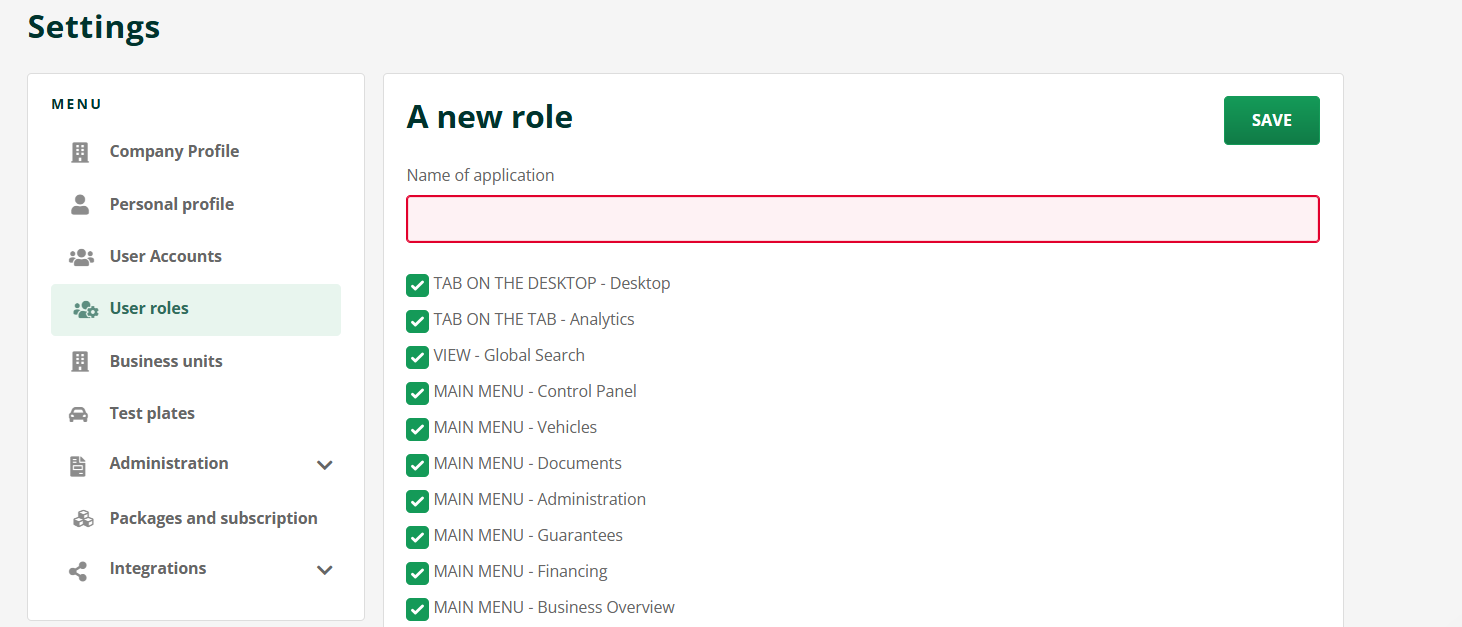
You create a new user role within "User Roles".
- Click the ADD ROLE button,
- select access permissions,
- assign a role name
- and save the role.
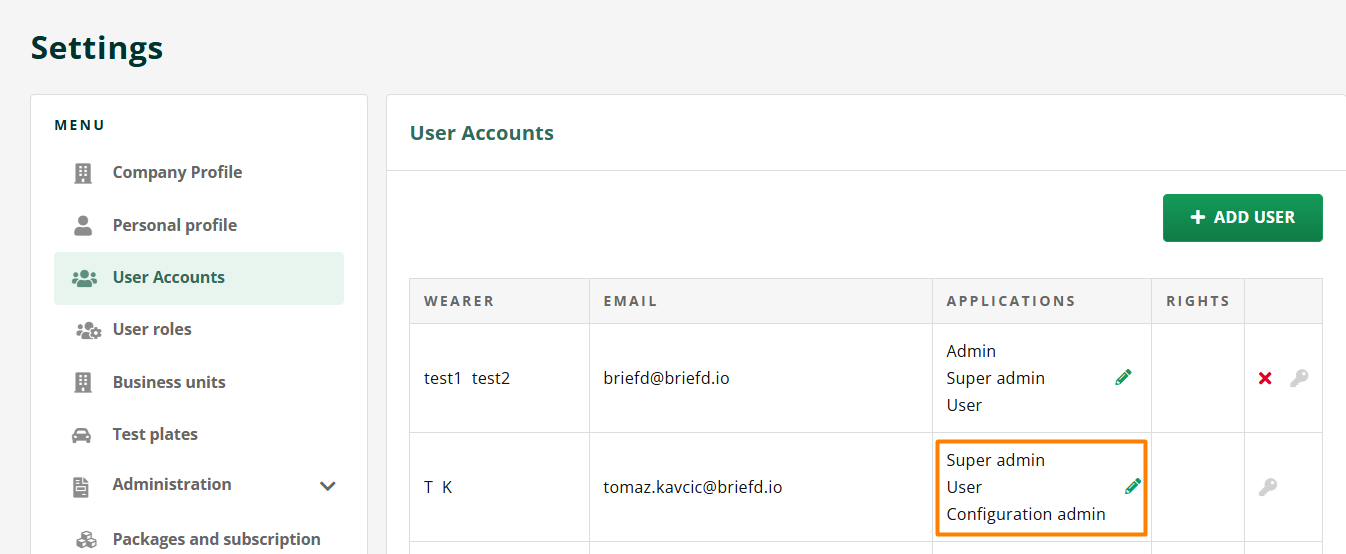
The new role will be available within "User Accounts", where you can assign it to each user under the ROLES column.
Usage example:
If an employee's task is to publish vehicles on advertising portals, you can grant them access only to vehicle inventory and advertising. At the same time you deny them access to view invoices or issue financing.
In this way, you can adjust permissions according to the individual's job function.
Why each user should have their own account
Sharing one account among multiple employees is not recommended. It is much better for each user to have their own access, as this allows for:
- better control over permissions,
- clear traceability of activities (e.g., who issued which invoice),
- greater data security,
- better overview of team work.
If an error or data inconsistency occurs, it is possible to quickly determine who performed a specific action.