
CarPeak - Vehicles
Upon entering the CarPeak application, you will see the vehicle list where you have an overview of your entire inventory.
- AutoBrief user: the list is automatically populated with vehicles from your inventory.
- New user: the list is initially empty.
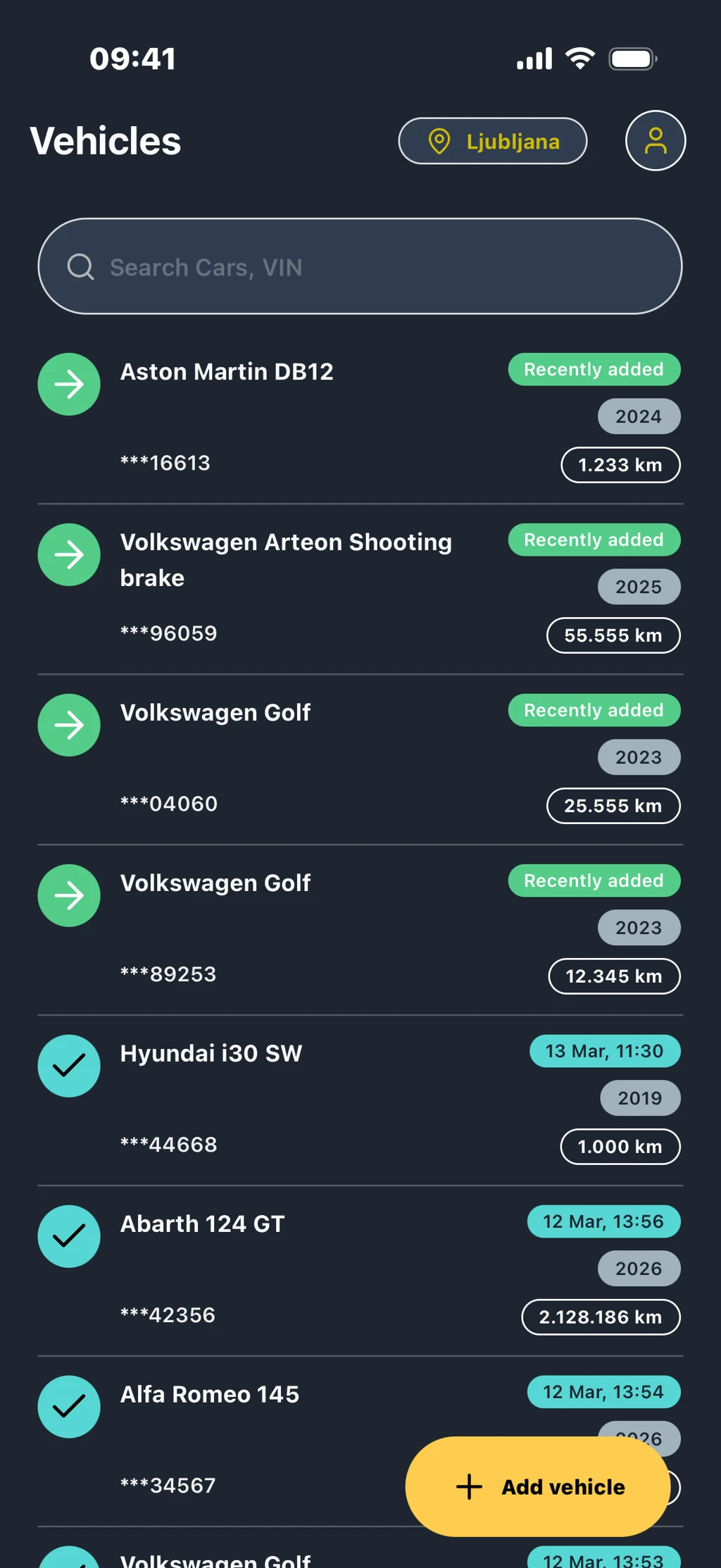 Vehicle inventory overview
At the top, there is a quick vehicle search field, where you can search for vehicles by:
- vehicle model
- VIN number
- internal number
Important: The search always covers all locations, regardless of the currently selected location.
Each vehicle displayed on the list contains basic information:
- make and model
- VIN number (partially displayed)
- internal number (if applicable)
- entry date
- year
- mileage
Important: Newly added vehicles are marked with a green label "Recently added" and are located at the top of the list.
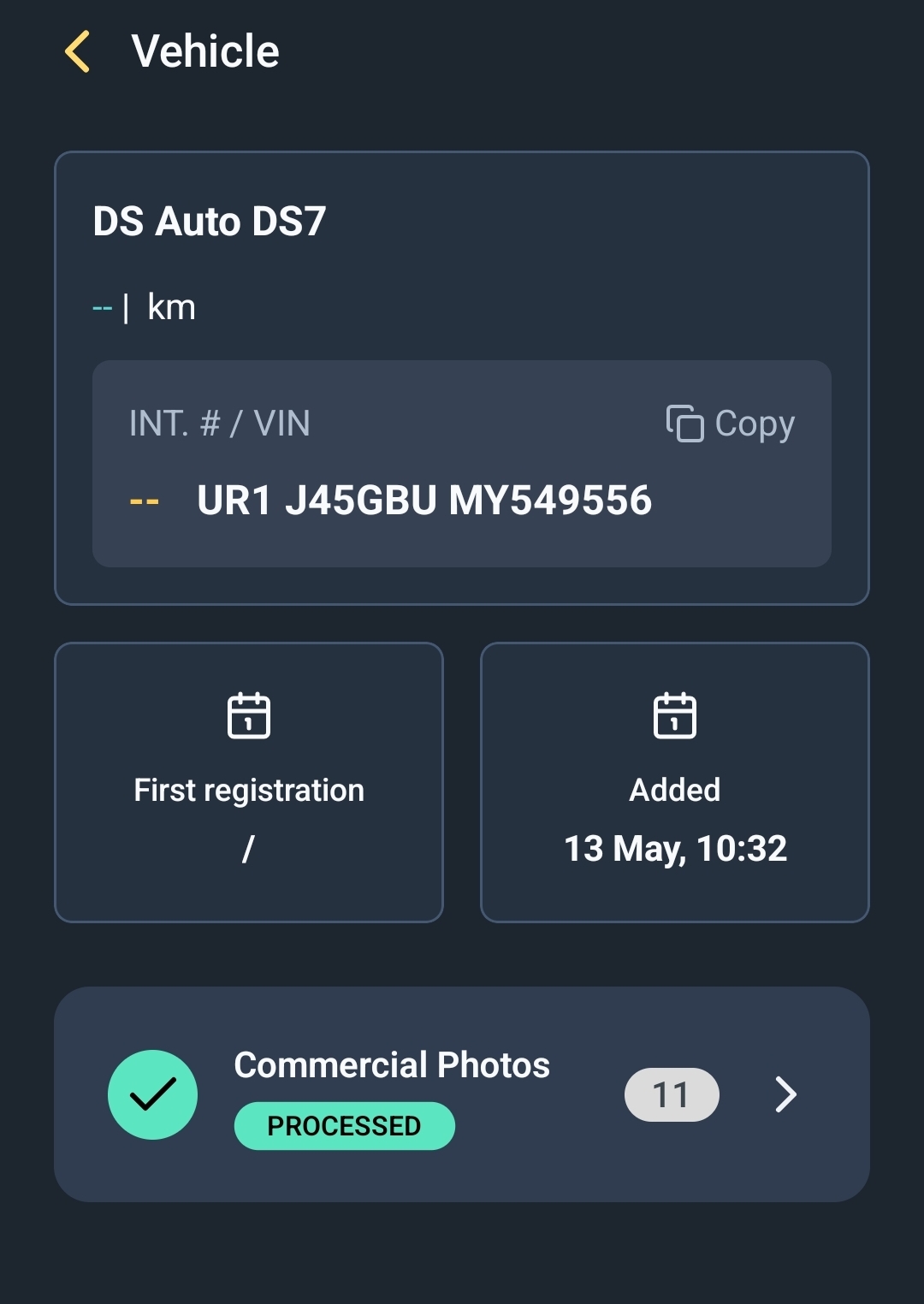 Individual vehicle overview
You access the overview by clicking on the vehicle.
The main functionality within the vehicle is Commercial Photos. This offers guided vehicle photography with automatic image processing (background removal, license plate removal, adding company logo, etc.)
The card displays the number of captured images and their processing status. The status is determined by the number of exterior and interior photos (8 exterior and 4 interior) and whether the images are uploaded, processed or still being processed.
By clicking on the Commercial Photos card the photo gallery opens if images already exist, or the photography process starts if there are no images yet.
How does the photography process work?
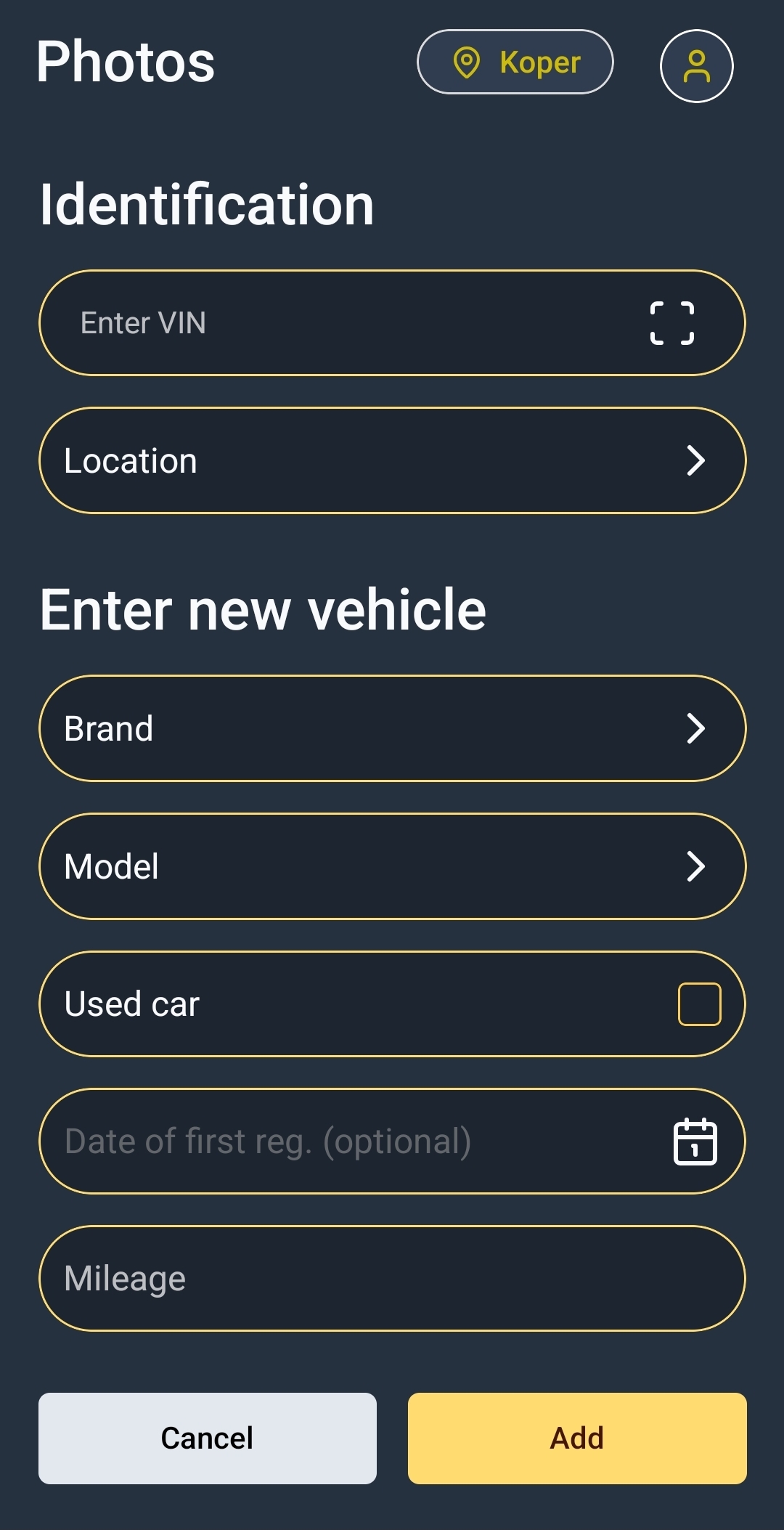
Adding a vehicle
You add a new vehicle by clicking the button “Add vehicle”.
The following information must be added for the vehicle:
- VIN number: this automatically fills in the remaining vehicle data using the VIN decoder, if vehicle data is available.
- Location: If you have only one location it will be automatically selected; if you have multiple, you must choose the location where you want to add the vehicle.
Important: Please pay attention, as it can easily happen that you assign the vehicle to a different location, which will also result in different/incorrect photo settings. - Make
- Model
- Used vehicle: check if the vehicle is used.
- Date of first registration: If the vehicle is new, this information is optional.
- Mileage: number of kilometers driven.
Once you successfully add the vehicle, the application automatically redirects you to vehicle photo capture .
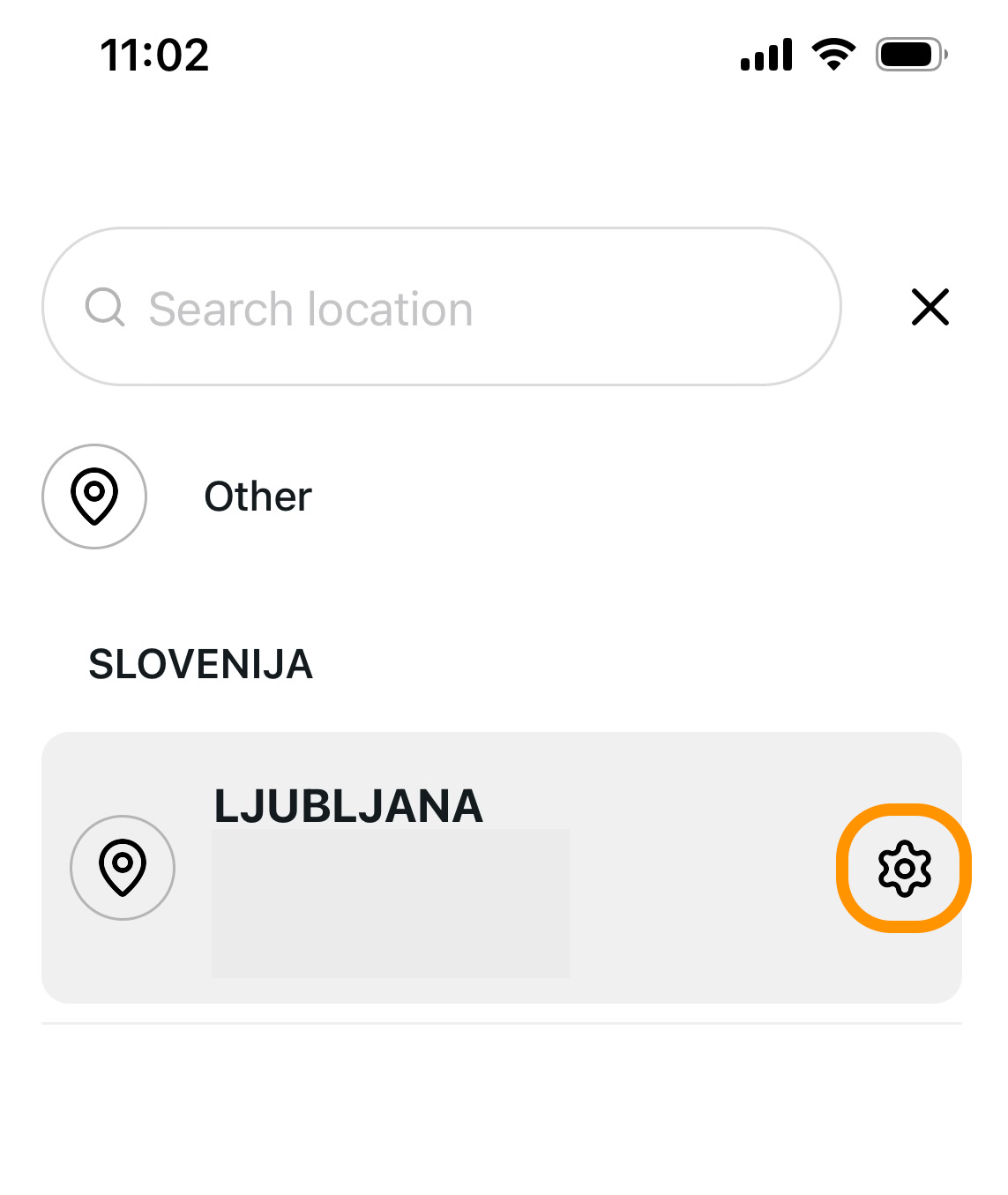
Vehicle location
You select the location in the upper right corner of the vehicle list.
The location determines which vehicles you see on the list and allows working by individual business units .
Each location has its own image processing settings. You can edit these by clicking the settings icon next to the location name.
Editing image processing settings.
Transferring vehicles to AutoBrief
When a vehicle is entered into the CarPeak application the vehicle is automatically created also within AutoBrief inventory.
Basic vehicle data entered in the application is already in the inventory. Both processed and unprocessed photos are also transferred.
The app name has been changed from AutoBrief Companion to Carpeak.